[Not a] Containers 101
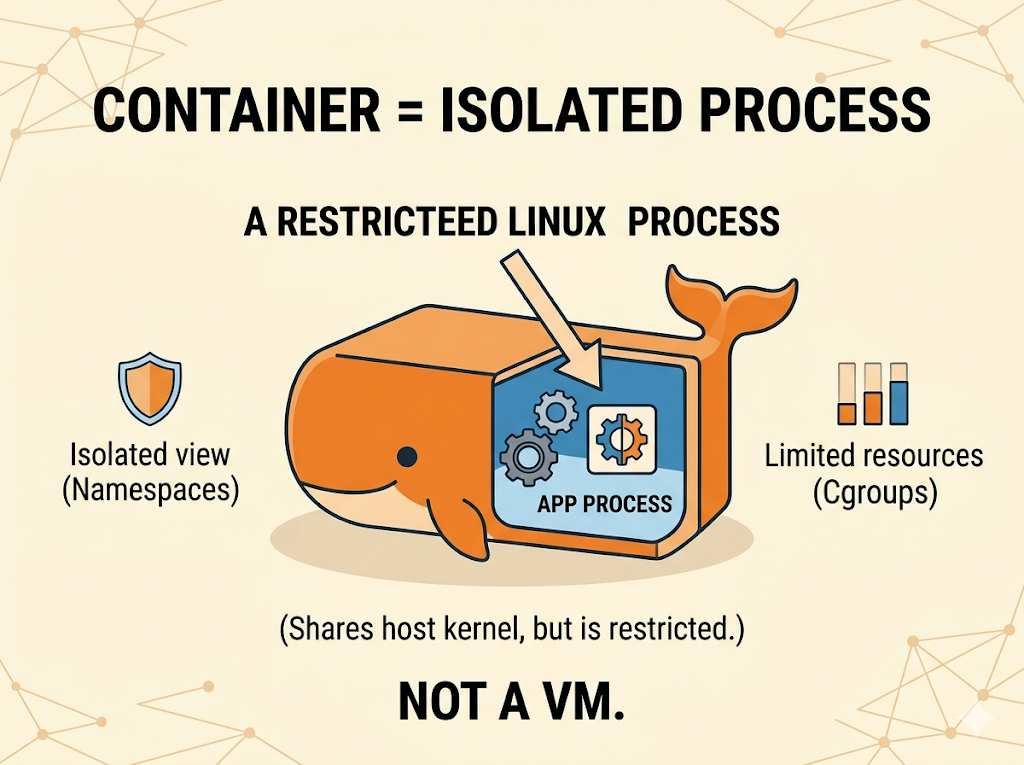
Containers do not actually exist. We often think of a Container as a mini Virtual Machine or a tiny, isolated computer. But here is the truth, Container is a Process, a restricted Linux process running on a host machine, sharing the host’s kernel but isolated via namespaces (what the process can view) and cgroups (how much resource the process can use).
Lets start with what is Docker image, how runtimes like containerd and CRI-O uses OverlayFS, Lastly fixing layer duplication issue in my Docker image.
Dockerfile
Before an image exists, it starts as a Dockerfile. Every instruction we write in a Dockerfile (like COPY, ADD, or RUN) creates a physical layer of files. I will repeat again, it creates files. Once a build step completes, that layer becomes locked and completely immutable.
What Actually is a Docker Image?
We write a Dockerfile, push an image, and deploy a Pod. But wait, what is Image?? An image is not a running program. It is nothing more than a collection of standard Linux files and directories. These files are packaged into a specific format (OCI standard) before being stored in a registry.
Image sitting in a registry consists of two primary components:
- The Manifest: A JSON document containing execution instructions and a list of layer hashes.
- The Layers : Actual files ( base OS directories), dependencies, and application code, These are bundled and compressed into a series of .tar.gz files (tarballs). These are simply the Linux equivalent of .zip files, used strictly to save space and bandwidth during download.
When a container runtime (like containerd or CRI-O or docker) pulls an image, its job is to download the JSON manifest, download the compressed layers, and unpack them into separate, physical directories on the host server’s hard drive in path /var/lib/containerd/.
To avoid duplicating these files every time a new Pod starts, the runtime relies on the Linux kernel’s OverlayFS.
OverlayFS: The Union Filesystem
OverlayFS is a union filesystem that allows Linux to mount multiple directories on top of each other, presenting them to the application as a single, unified filesystem.
It relies on three main components:
- LowerDir (Read-Only): These are the unpacked .tar.gz layers from Docker image. Once unpacked on the host server, these directories are strictly immutable. Multiple running containers can share this exact same set of physical files.
- UpperDir (Writable): For every container that starts, the runtime creates a dedicated, empty directory. Any file writes, modifications, or deletions performed by the running application happen exclusively in this directory.
- WorkDir (Staging): A hidden directory used by OverlayFS to ensure atomic file operations. If a container writes a large file, it is written to the WorkDir first, then moved to the UpperDir upon completion to prevent file corruption in the event of a crash.
When weexec into a container and list the files, the Linux kernel merges the LowerDir and UpperDir. The application is unaware that the files are physically separated on the host server.
Uncovering layer duplication issue
Here is my Docker Image
# Step 1: Use Amazon Corretto 17 with Alpine Linux as the base image for building the application
FROM amazoncorretto:17-alpine3.17 as build
WORKDIR /workspace/app
COPY gradlew .
COPY gradle gradle
COPY build.gradle .
COPY settings.gradle .
COPY src src
RUN chmod +x ./gradlew && ./gradlew build -x test

# Step 2: Use Amazon Corretto 17 with Alpine Linux as the runtime base image
FROM amazoncorretto:17-alpine3.17
ARG JAR_FILE=/workspace/app/build/libs/*.jar

# Copy the JAR file from the build stage
COPY --from=build ${JAR_FILE} app.jar

# Add Observability Agent
ADD https://github.com/open-telemetry/opentelemetry-java-instrumentation/releases/download/v2.23.0/opentelemetry-javaagent.jar /opt/aws-opentelemetry-agent.jar

RUN chown 1000 ./app.jar && \
    chown 1000 /opt/aws-opentelemetry-agent.jar

USER 1000
ENTRYPOINT ["java","-jar","/app.jar"]
While I was reading on OverlayFS, I was curious to look at the how CRI-O runtime unpacks the layers into separate folders. SSH’d into AWS EKS EC2 worker node to trace Java application Image’s Layers.
EKS node runs a CRI-O runtime under the hood, it doesn’t have crictl had to install crictl first
VERSION="v1.33.0"
wget https://github.com/kubernetes-sigs/cri-tools/releases/download/$VERSION/crictl-$VERSION-linux-arm64.tar.gz
sudo tar zxvf crictl-$VERSION-linux-arm64.tar.gz -C /usr/local/bin
rm -f crictl-$VERSION-linux-arm64.tar.gz
To list the running:
sudo crictl ps
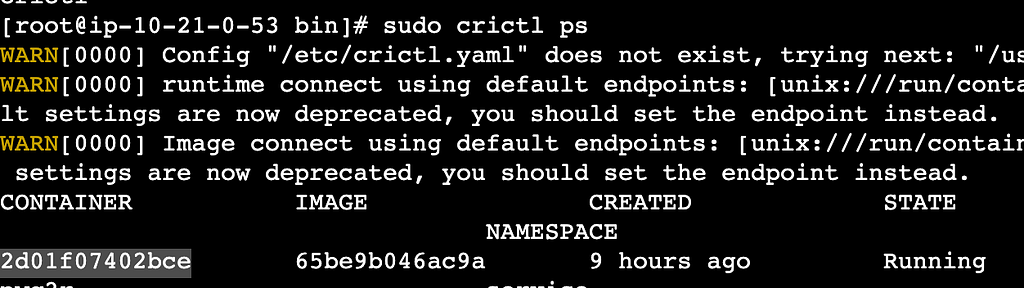
Got the Image id for my application: 65be9b046ac9a, and container id: 2d01f07402bce
To look at the image manifest:
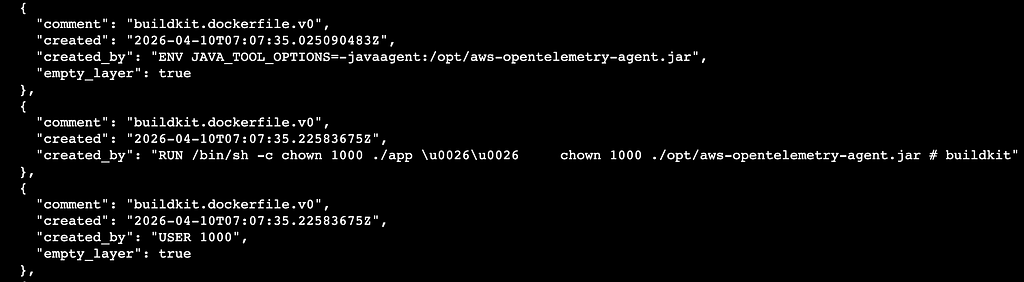
sudo crictl inspecti <image-id>
In the JSON output, under the history section, I noticed something specific. Instructions like ENV and USER were marked as "empty_layer": true, meaning they only added metadata and did not take up disk space. , ButRUN chown 1000 command at the end of my Dockerfile had generated a SHA256 layer hash in the rootfs.diff_ids list.
To get the Overlay folders
sudo crictl inspect 2d01f07402bce | grep pid
cat /proc/230471/mountinfo | grep overlay
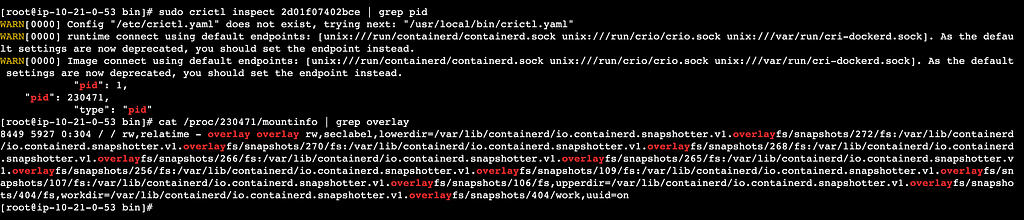
Output revealed the exact paths chained together in the lowerdir. I have manually navigated through these snapshot directories on the host server and found the problem:
- Inside Snapshot 270, I found opt/aws-opentelemetry-agent.jar.
- Inside Snapshot 268, I found the exact same opt/aws-opentelemetry-agent.jar duplicated.
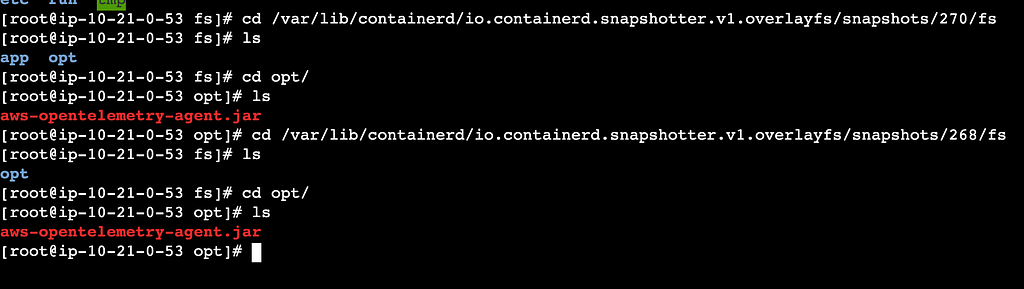
This made me look closely at dockerfile, and then it striked I was applying permissions after the layers are created
# Step 1: Use Amazon Corretto 17 with Alpine Linux as the base image for building the application
...

# Step 2: Use Amazon Corretto 17 with Alpine Linux as the runtime base image
FROM amazoncorretto:17-alpine3.17
ARG JAR_FILE=/workspace/app/build/libs/*.jar

# Copy the JAR file from the build stage
COPY --from=build ${JAR_FILE} app.jar

# Add Observability Agent
ADD https://github.com/open-telemetry/opentelemetry-java-instrumentation/releases/download/v2.23.0/opentelemetry-javaagent.jar /opt/aws-opentelemetry-agent.jar

# Here is the issue
RUN chown 1000 ./app.jar && \
    chown 1000 /opt/aws-opentelemetry-agent.jar

USER 1000
ENTRYPOINT ["java","-jar","/app.jar"]
When the COPY and ADD commands executed in Step 2, the image builder created new layers containing those files. After those layers became immutable. When RUN chown command executed, it attempted to change the ownership metadata of files inside those locked layers.
Builder cannot modify the existing read-only layer, So it copied built app.jar and the 40MB+ OpenTelemetry agent into a brand-new layer just to apply the new ownership metadata. This bloated the final image size by duplicating the heaviest files in the application.
To resolve this, the ownership permissions must be applied at the exact moment the files are added to the image. Here is my updated Docker file
# Step 1: Use Amazon Corretto 17 with Alpine Linux as the base image for building the application
...

# Step 2: Use Amazon Corretto 17 with Alpine Linux as the runtime base image
FROM amazoncorretto:17-alpine3.17
ARG JAR_FILE=/workspace/app/build/libs/*.jar

# Apply ownership directly during the COPY and ADD instructions
COPY --chown=1000:1000 --from=build ${JAR_FILE} app.jar
ADD --chown=1000:1000 https://github.com/open-telemetry/opentelemetry-java-instrumentation/releases/download/v2.23.0/opentelemetry-javaagent.jar /opt/aws-opentelemetry-agent.jar

USER 1000
ENTRYPOINT ["java","-jar","/app.jar"]
- Before the Fix: 9 physical layers, 548MB total image size.
- After the Fix: 8 physical layers, ~508MB total image size.
Finally I found hidden inefficiency, reduce my image size. Understanding how containers interact with the underlying operating system changes how we write and optimize Docker images. While fixing the layer duplication bug reduced only 40MB and cleaned up our filesystem, this is only the tip of the iceberg when it comes to container optimization and security. There is a whole world of distroless containers and CIS-hardened base images to explore but we’ll save those for a future post.
Happy building!
Comments (0)
No comments yet. Be the first.